
Event Settings is where you name your event, set when it runs, control who can reach it, and decide how long its data is kept.
How to open Event Settings
-
Go to Events.
-
Find your event and click Edit & Launch.
-
Click the Event tab.
The event workspace has five tabs, and each saves on its own:
| Tab | What it's for |
|---|---|
| Launchpad | Event code, share links, QR codes, simulation test |
| Event | This article |
| Flow | The screens guests move through at the booth |
| Styles | Branding and appearance |
| Output | How guests receive their photos |
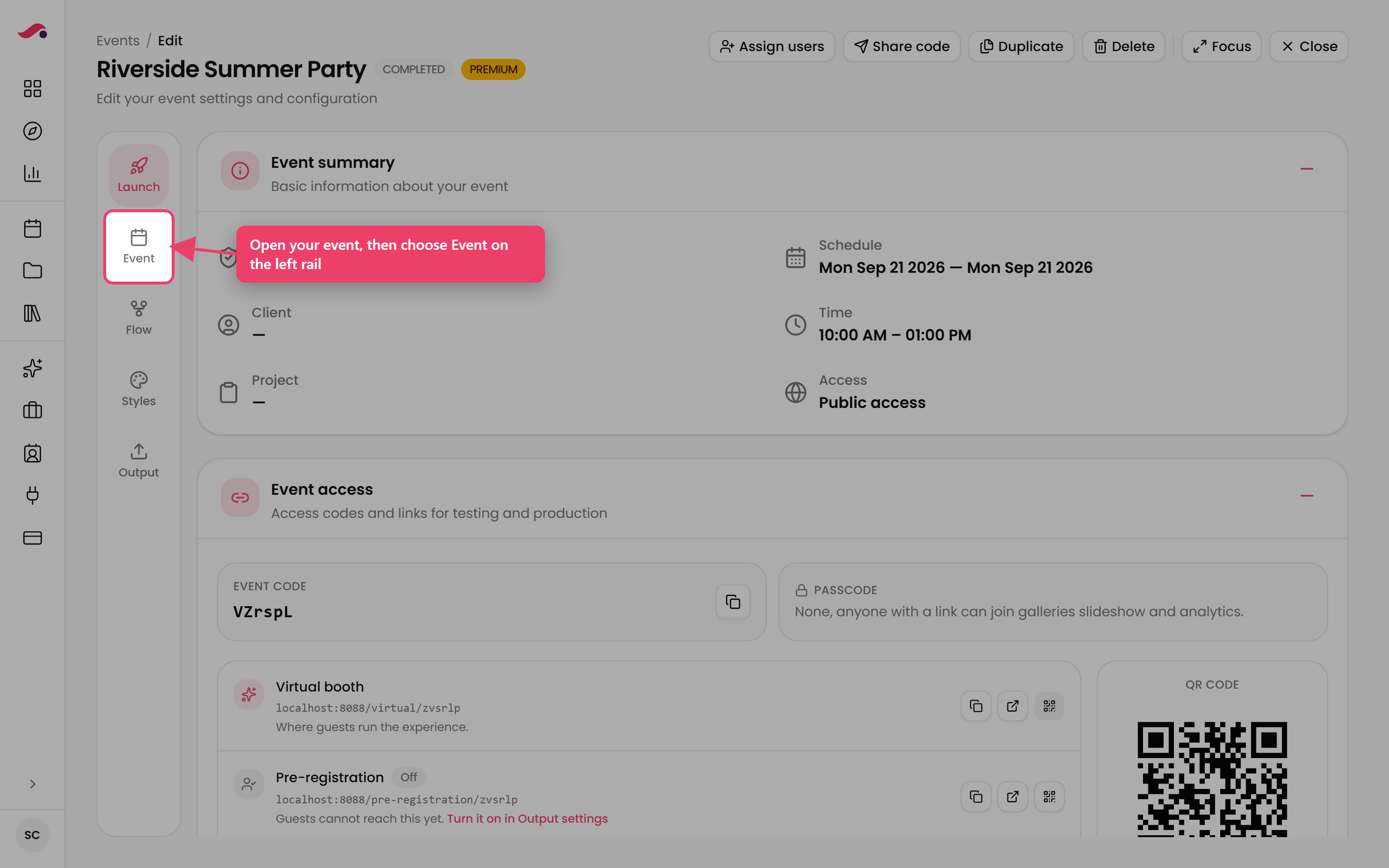
Open your event, then choose Event on the left rail.
Identity
| Field | What it does |
|---|---|
| Event Name | Required. Used on the Events list, as the delivery email subject, and as the Dropbox folder name |
| Description | Internal notes about this event. Not shown to guests |
| Client | Who the event is for. Choose from the list, or click Create client to add one |
| Project | A way to group events. Premium plans only |
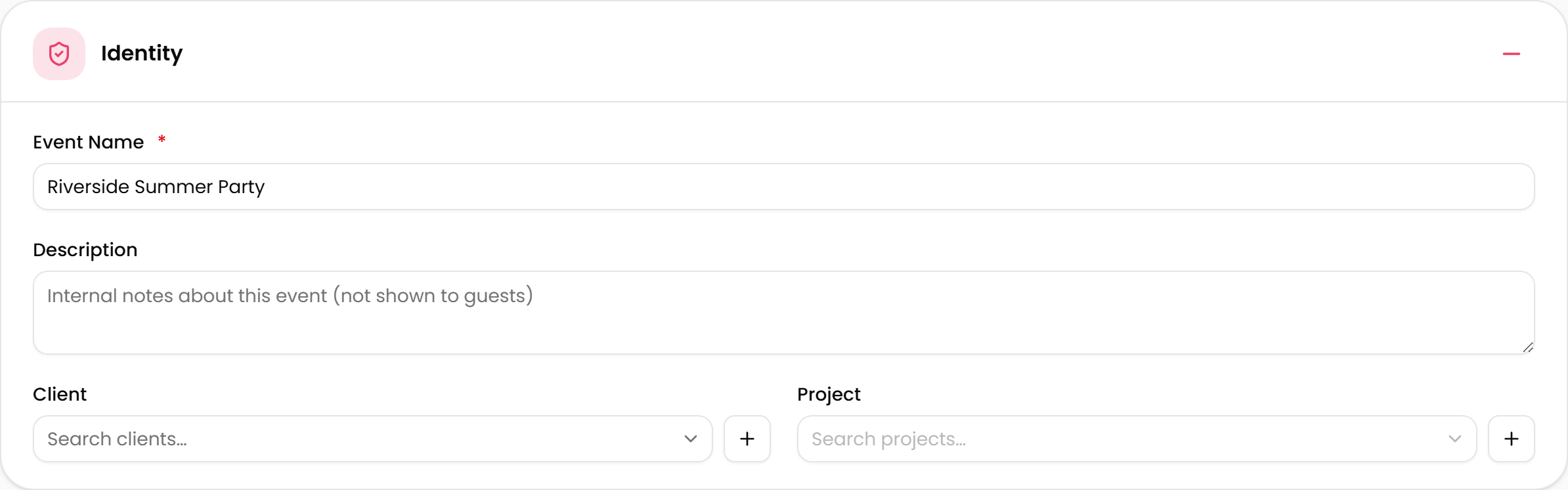
Identity on the Event tab.
Schedule
Set the hours you will actually be on site.
| Field | What it does |
|---|---|
| Start Date | Required |
| Start Time | Required |
| End Date | Required |
| End Time | Required |
Your event opens and closes itself at these times:
| Status | When |
|---|---|
| Upcoming | Before the start |
| Live | Between start and end |
| Completed | After the end |
ImportantThe schedule is what lets guests reach the booth. A guest arriving before the start sees "This event has not yet started.", and after the end "This event has finished."
If the booth will not open on the day, check these four fields first. Extending End Time brings a finished event straight back to Live.
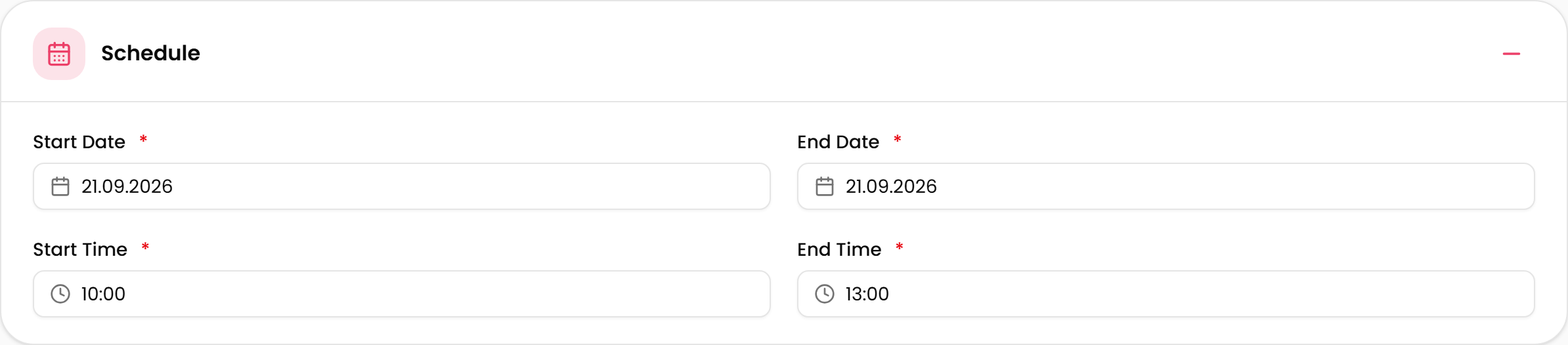
All four schedule fields decide when guests can use the booth.
Access & Limits
Max Sessions — a cap on how many booth sessions the event will accept. Leave empty for unlimited.
Password (Optional) — set a password to protect your event from unauthorised access. Anyone trying to exit the booth will need to enter this password first. This is especially useful for events at shared venues, or when your device is unattended during setup.
The same password also applies to the public gallery and the slideshow.
Leave it empty for public access.

Leave either field empty for unlimited sessions or public access.
Data retention
Three switches control when an event's data is deleted.
| Switch | What it does |
|---|---|
| Scrub data automatically | Captures and guest data are deleted when the event ends |
| Scrub data at a set time | You pick the exact date and time. Replaces automatic scrubbing |
| Scrub survey answers too | Survey answers are scrubbed separately. Needs one of the options above |
Choosing Scrub data at a set time reveals Scrub date and Scrub time. Both are required.
ImportantThe first two switches are alternatives — turning one on turns the other off.
ImportantSurvey answers are not covered by the first two switches on their own. To delete everything, switch on one of the first two and switch on Scrub survey answers too.
ImportantScrubbing is permanent. Download anything you need first.
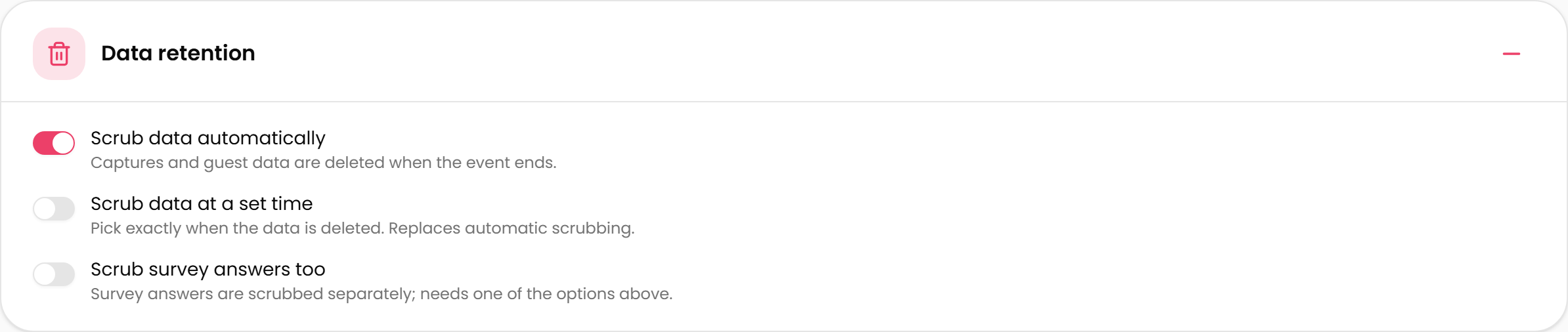
Scrubbing data automatically when the event ends.
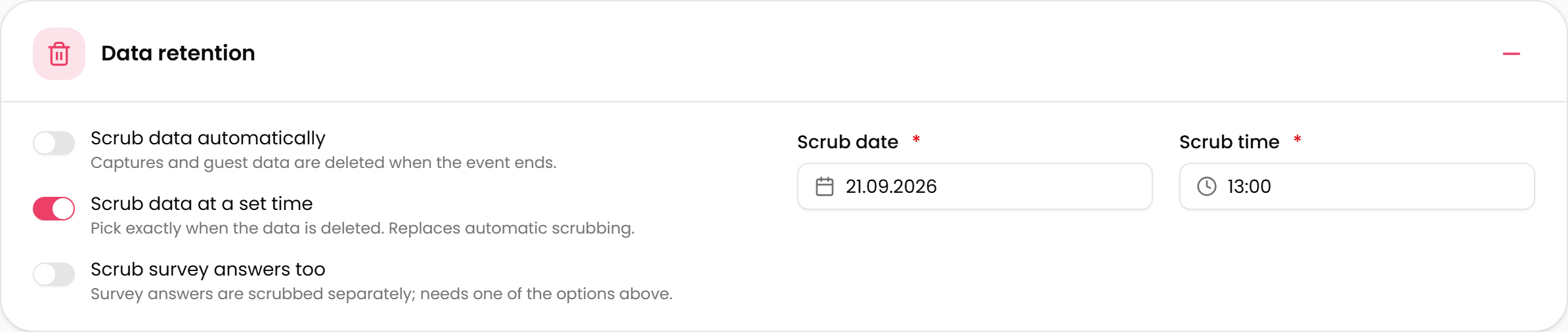
Choosing a set time replaces automatic scrubbing.
Saving
Click Save Changes.
If you move to another tab with unsaved work, Pictor asks first and offers Discard Changes or Keep Editing.
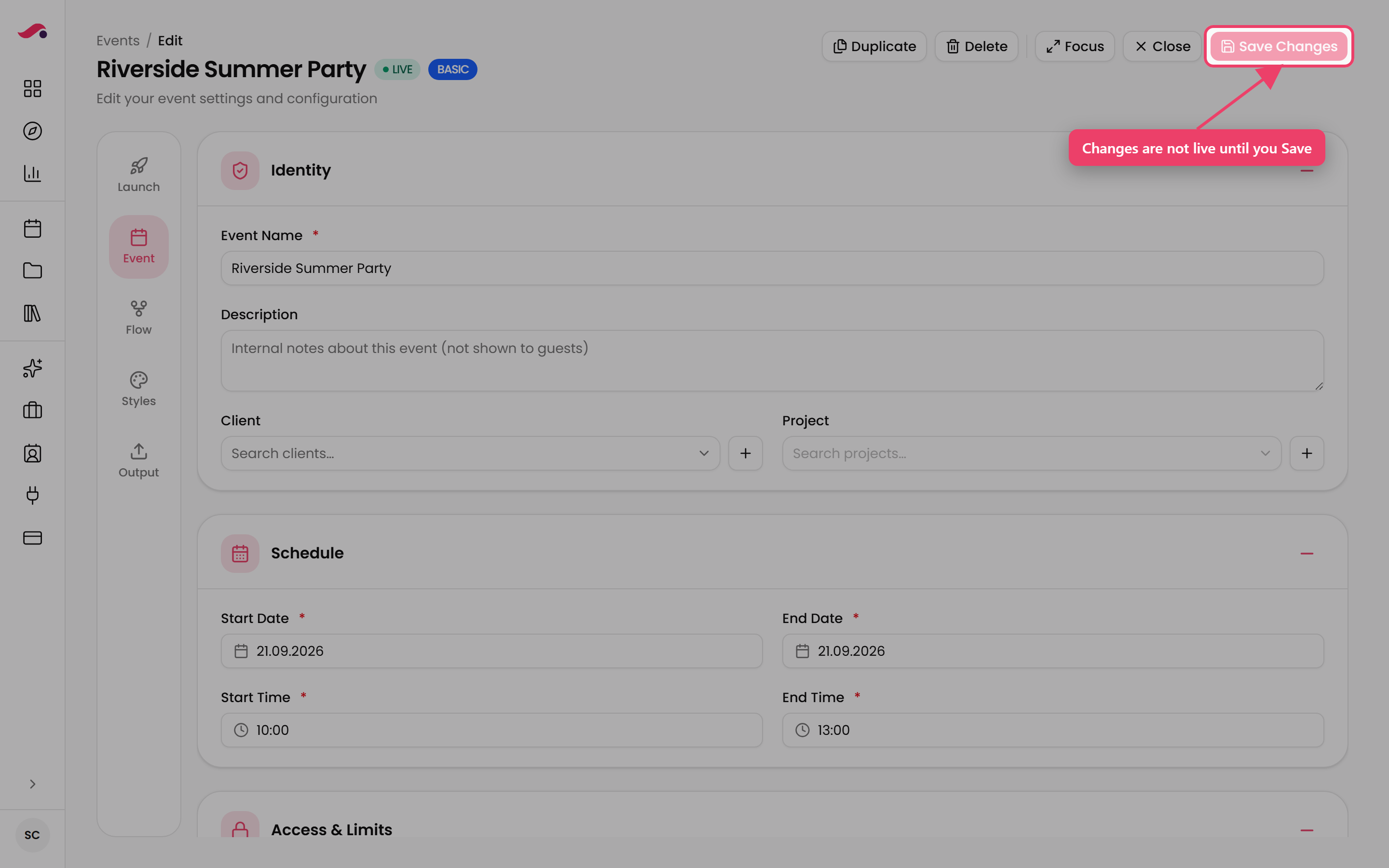
Nothing you change is live until you press Save Changes.
Header actions
These sit at the top of every tab.
| Action | What it does |
|---|---|
| Assign users | Give team members access to this event |
| Share code | Email the event code to someone |
| Duplicate | Duplicate the event |
| Delete | Remove the event permanently |
| Close | Return to the Events list |
Important - Deleting an event removes its captures too.
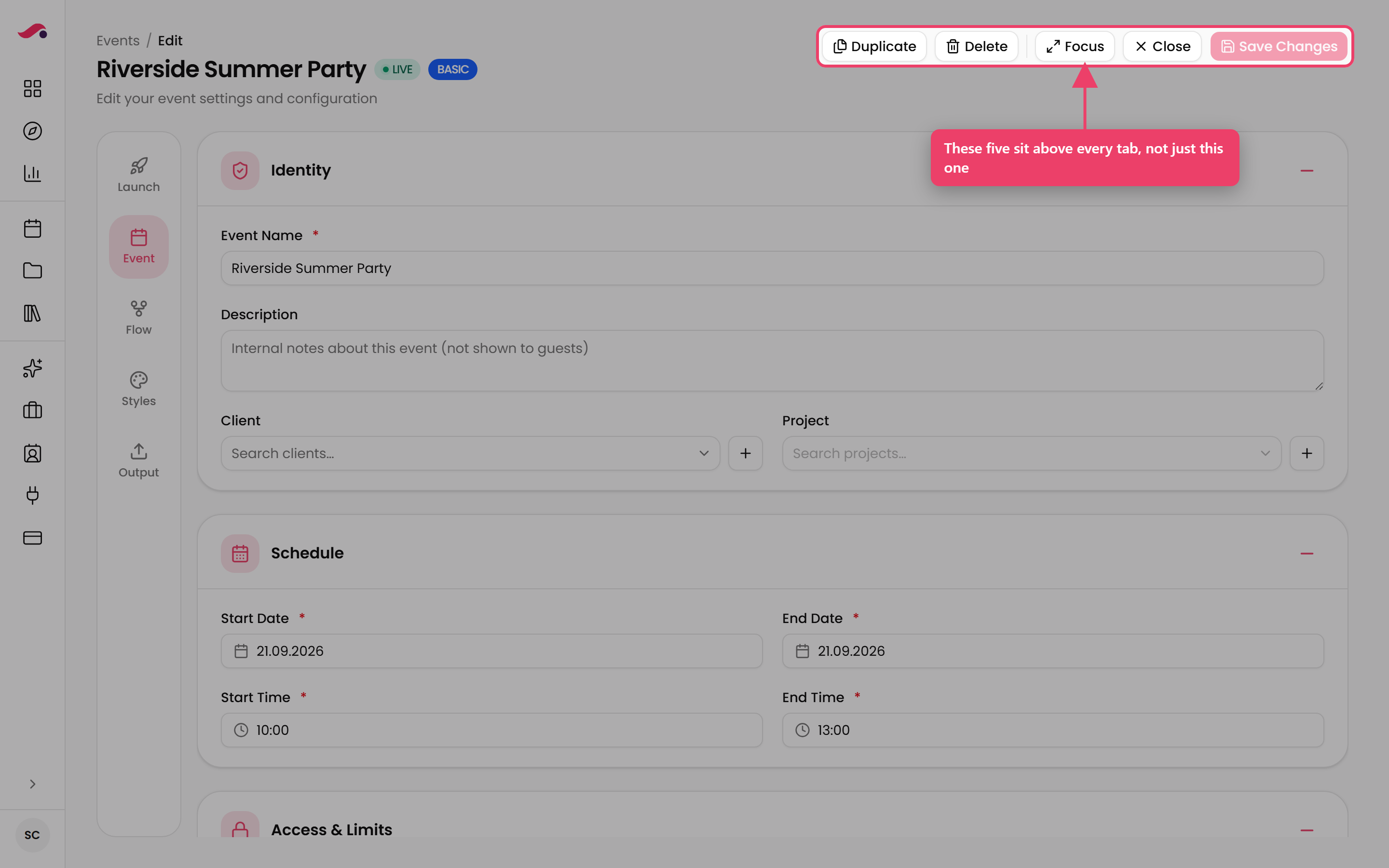
The header actions are available from any tab.
See also
-
Launchpad — where you launch the event once it is set up
-
Flow — the screens guests move through
-
Keeping your event data secure — what the retention settings do